These are notes for the IT Support Professional Certification delivered by Google in partnership with Coursera.
This program is ACE® approved—when you complete, you can earn up to 12 college credits, the equivalent of 4 associate degree-level courses.
This program also prepares you for the CompTIA A+ exams, the industry standard certification for IT—you’ll earn a dual credential when you complete both.
Week 1
This module will cover operating systems and basic tasks.
Comment: This is going to be boring as hell… I went straight to the practice quiz and got 100%.
Basic Commands
https://docs.microsoft.com/en-us/windows-server/administration/windows-commands/windows-commands
https://docs.microsoft.com/en-us/powershell/
- We call the location of files and directories, paths.
- In Windows, file systems are assigned to drive letters.
- Each file system has a root directory.
ls = Command, c:/ = parameter : ls c:/ -Force
Using the -Force parameter you will see hidden files.
Get-Help is like –help or man in Linux.
- Windows: Get-Help ls -Full
- Linux: man ls
In the course they talk about man being similar to Get-Help in Linux.
they use… ls -l -a where I would just do ls -la
- Bin: stores binary programs, kinda like ProgramFiles in Windows.
- Home: is like Users is Windows.
–help flag shows more flags for that program…
An absolute path is one that starts from the main directory. A relative path is the path from your current directory.
pwd shows the directory you’re in. cd changed directory. This is the same for both PS and BASH.
~ tilda is a shortcut for home directory. PS and BASH are the same.
Tab completion lets us use the tab key to auto-complete file names and directories.
In PS you can surround names with quotes or use a backtick.
‘this uses spaces’ or this` uses` spaces`
PS you can use the history command, or run a search with CTRL-R on previous commands. Older versions of PS use # with tab completion.
In BASH you can cat the ~/bash_history file.
In the command line, if we wanted to rename a file, we can use the move or move item command.
rm -Force removes files… The say yes to all use -Recurse
File and Text Manipulation
cat, more, less – Show content of file.
In PS you can use -Head and -Tail with cat to show top or bottom content.
In BASH less is more… You can use shortcuts
$ less file.txt
g, this moves to the beginning of a file. You can see now we’re at the beginning. Capital G, this moves to the end of a text file.
In PS you can just start Notepad++ filename to edit. In BASH nano is always available, even tho this course likes vim.
PS, just like BASH uses Aliases.
Suss it with Get-Alias ls
You’ll see it’s another command…
Windows has a service called the Windows Search Service. This service indexes files on your computer by looking through them on a schedule. On Windows 8 and Windows 10 desktop computers, It’s often enabled for files in your home directory, but not for the entire hard drive.
When you search for a file inside Explorer in Windows, you’ll need indexing properties setup.
Start > Indexing Options | Advanced | File Types > Index Properties and File Content
You can then search for content inside files…
Alternatively you can just use “find in files” option inside Notepad++
In PS you can use the SLS or Select-String command to find words or other strings of characters and files.
In PS you can use -Filter and it will filter the results for file names that match a pattern. Use this to find txt files, ls -Filter *.txt
Pipelines
- > output
- < input
- | pipe
- >> append
Check errors in the 2nd stream. 2> error.txt will output errors into that text file. You can also use $null in PS to see no errors.
- 0 – stdin
- 1 – stdout
- 2 – stderr
At the CLI, the input that you provide through the keyboard goes to the standard in stream of the process that you’re interacting with. This happens whether that’s PowerShell, a text editor, or anything else. The process then communicates back to you by putting data into the Standard out stream, which the CLI writes out on the screen that you’re looking at.
PS: cat words.txt | Select-String world
Bash: cat words.txt | grep world
$ find [where to start searching from]
 [expression determines what to find] [-options] [what to find]
Assessment
What you’ll do
In this lab, you’ll create and modify folders using the File Explorer tool. By the end of this lab, you’ll complete the following:
- Create a folder and file using the File Explorer tool.
- Modify and rename files and folders using the File Explorer tool.
- Copy and move files using the File Explorer tool.
- Remove and delete files and folders using the File Explorer tool.
- Search for specific files and folders using the “Search” menu in the File Explorer tool.
You’ll have 60 minutes to complete this lab.
100%, too easy…
Week 2
Users, Administrators, Groups
A standard user is one who is given access to a machine, but has restricted access to do things like install software or change certain settings.
An administrator or admin is a user that has complete control over a machine. They can view anyone’s account, change and remove anyone on the computer, and view every single file.
Users are put together in groups according to levels of access and permissions to carry out certain tasks.
Passwords
In PS you can change a user password using net command.
net user 0x65 *
to force a user to change their own password on next logon.
net user 0x65 /logonpasswordchg:yes
In Bash you can just use the passwd command, use flags like -e to expire it.
Users
Windows GUI: ‘Computer Manager’ > go into users and add user.
Windows CLI: use the net command. net user 0x65 * /add
You can use Get-LocalUser to confirm… Then force the password change… You can do it all in one go.
net user 0x65 pA55w0rd /add /logonpasswordchg:yes
The flag /del will delete a user… net user 0x65 /del
This is different to Linux where you can use useradd with flags, or adduser to go through the prompts.
Mobile Devices use user account levels in a different way. Most mobile devices only support 1 user profile. Android supports multiple user profiles.
Permissions
In Windows, files and directory permissions are assigned using Access Control Lists or ACLs. Specifically, we’re going to work with Discretionary Access Control Lists or DACLs.
Windows files and folders can also have System Access Control Lists or SACLs assigned to them. SACLs are used to tell windows that it should use an event log to make a note of every time someone accesses a file or folder.
You can think of a DACL as a note about who can use a file and what they’re allowed to do with it.
Read, the Read permission lets you see that a file exists, and allows you to read its contents.
Read and Execute, the Read and Execute permission lets you read files, and if the file is an executable, you can run the file.
List folder contents is an alias for Read and Execute on a directory. It means that you can read and execute files in that directory.
Write, the Write permission lets you make changes to a file. It might be surprising to you, but you can have write access to a file without having read permission to that file.
Modify, the Modify permission is an umbrella permission that include read, execute and write.
Full control, a user or group with full control can do anything they want to the file.
in PS you can change ACLs with the icacls command.
https://docs.microsoft.com/en-us/windows/win32/secauthz/access-control-lists?redirectedfrom=MSDN
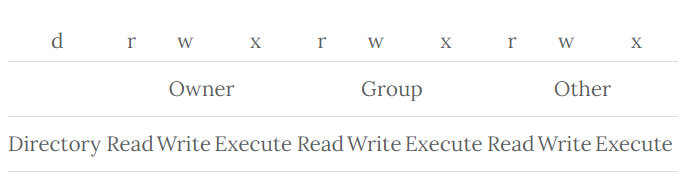
Linux is actually heaps easier… rwx
In Windows to modify permissions…
Right Click on File > Properties > Security > Edit File Permission’s > Add Authenticated User – type the username and click on Check Names…
In CLI use this example…
icacls ‘C:\ Vacation Pictures’ /grant Everyone:(OI)(CI)(R)
https://superuser.com/questions/322423/explain-the-output-of-icacls-exe-line-by-line-item-by-item
In Linux to modify permissions you use the chmod command
In Windows there are Special Permissions, aka Simple or Specific Permissions.
In Linux…
Sticky bit. This bit sticks a file or folder down. It makes it so anyone can write to a file or folder, but they can’t actually delete anything.
https://www.geeksforgeeks.org/setuid-setgid-and-sticky-bits-in-linux-file-permissions/
https://www.linuxtopia.org/online_books/introduction_to_linux/linux_The_chmod_command.html
Assessment
What you’ll do
In this lab, you’ll create and change folder permissions using the Windows Command Line Interface (CLI), known as Powershell. In this exercise, you’ll:
- access administrative privileges to use Powershell in Windows.
- view file and folder permissions using the GUI and Powershell commands.
- modify the permissions for both files and directories by granting and removing specific permissions using ICACLS in Powershell.
- modify the permissions for groups using the GUI and Powershell.
You’ll have 60 minutes to complete this lab.
Passed…
Week 3
Managing software packages…
Windows you can just use Control Panel. Windows uses the Windows Store for packages. These are usually .msi files which use the windows installer, but they can also be standalone which rely on the exe file to call everything it needs from the OS.
https://www.powershellgallery.com/
Linux (Ubuntu) you can use apt or snapd. These are packed as .deb files. You can install a deb file using dpkg -i command. You can confirm with grep like dpkg -l | grep program.
Android uses apk files.
Dependencies
dll files… dynamic-link libraries. These can be used by different programs. I guess think of these like calling the JSON library for a website.

Quiz
82.40%
Question 9
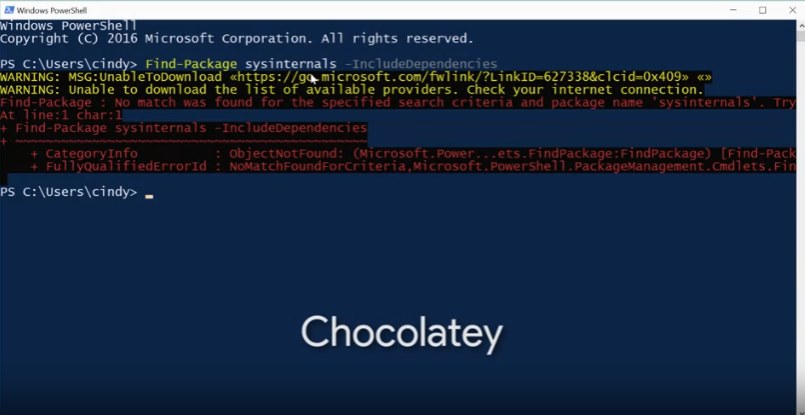
What’s the correct commandlet to use in order to find a software package in the available package sources from the PowerShell command line? – I selected Get-PackageSource, I don’t know why… The answer is in the word LMAO!!!!
Quiz
About package managers… I skipped the videos.
100%
Under The Hood
For more information about various ways you can create and edit Windows installer packages, check out the following links: Process Monitor, Windows Installer Examples, and Orca.exe.
Quiz
100%
Managing Devices & Drivers
Windows:
CRTL-R and devmgmt.msc
The OS looks for drivers, otherwise Google it.
Ubuntu:
/dev directory
So far, we’ve seen dash which stands for a regular file and a D which stands for a directory. But in this output, we can see we have a few other file types. Some of them have B for block device and C for character device.
You’ll see a few files that start with /dev/sda or /sdb. SD devices are mass storage devices like our hard drives, memory sticks, et cetra. If you see an A after SD, it just means the device was detected by the computer first. So you might see something like /dev sda, /dev sdb, /dev sdc.
The /dev/null device, we can see it’s considered a character device because it’s used to transfer data, character by character.
Drivers live in the kernel, so you’ll need to update the kernel. There could be a kernel module used also, which extend the kernel’s functionality without them actually touching it.
Quiz
100%
Assessment
What you’ll do
You have a bunch of tasks for this lab. First, you’ll install and remove software using the Windows graphical user-interface (GUI). Second, you’ll remove and install software using the Windows Command Line Interface (CLI), known as Powershell. Third, you’ll extract and compress files into a .zip archive in the GUI and CLI. Last but not least, you’ll use Chocolatey to manage software within the Powershell terminal.
- Install Atom using Windows GUI
- Extract files using 7-Zip and Powershell
- Install VLC using Chocolatey
- Uninstall GIMP using Chocolatey
You’ll have 60 minutes to complete this lab.

Passed
Week 4
FAT32 has some shortcomings though. It doesn’t support files larger than 4 gigabytes, and the size of the filesystem can’t be larger than 32 gigabytes.
The main difference between MBR and GPT is that MBR has some limitations for modern usage. Namely, MBR can only handle four primary partitions and 2TB of HDD space. GPT has no partition limit, so you can have ten partitions if you want. However, versions of Windows earlier than 8 can’t boot off of GPT drives.

To use UEFI booting, your disk has to use the GUID Partition Table.
Before you can store files on a hard drive: partition, format and mount. You can do this in Windows with the disk management utility. Computer Management > Disk Management

In Ubuntu: sudo parted -l will list the drives…
Remember that one kibibyte is actually 1,024 bytes while one kilobyte is 1,000 bytes.
If you want to automatically mount a filesystem on computer startup, what file do you have to modify? /etc/fstab; To automatically mount filesystems on startup, you have to add a device entry to the /etc/fstab file.
NTFS uses something called The Master File Table or MFT to keep everything straight. Every file on a volume has at least one entry in the MFT, including the MFT itself.
The idea behind disc defragmentation is to take all the files stored on a given disk and reorganize them into neighboring locations.
Although NTFS is largely a self-healing filesystem, which of the following tools can you run to try to locate and repair serious disk corruption of the C: drive? chkdsk /f c:
Quiz
95.83% – No wrong answers, missed two selections.
Assessment
What you’ll do
You’ll learn how to partition a disk drive into one or more partitions. You’ll also learn how to format each of those partitions to a different file format. Your main learning objective for this lab is to practice the partitioning and formatting commands you’ll find in this lab in the Windows VM.
You’ll have 60 minutes to complete this lab.
PASS
What you’ll do
You’ll learn how to partition a disk drive into one or more partitions. You’ll also learn how to format each of those partitions to a different file format. Your main learning objective for this lab is to practice the partitioning and formatting commands you’ll find in this lab in the Linux VM.
You’ll have 60 minutes to complete this lab.
lsblk; df -h; sudo fdisk -l;
PASS
Week 5
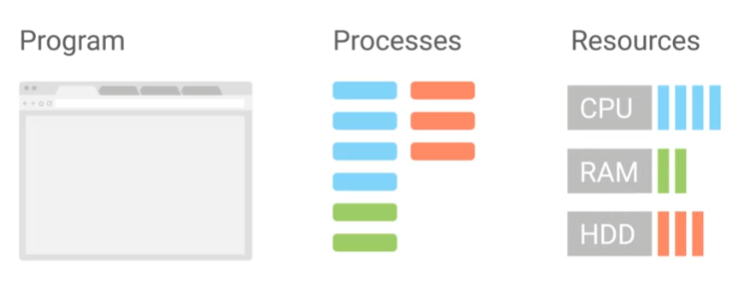
Programs are the applications that we can run like the Chrome web browser. Processes are programs that are running.
When Windows boots up or starts, the first non-kernel user mode that starts is the Session Manager Subsystem or smss.exe. The smss.exe process is in charge of setting some stuff up for the OS to work.
It then kicks off the log-in process called winlogon.exe appropriately enough, along with the Client/Server Runtime Subsystem called csrss.exe, which handles running the Windows GUI and command line console.
Windows – Open notepad…
CMD: tasklist | findstr notepad
Or in PS: Get-Process
“lets say is shows 6000”
CMD: taskkill /pid 6000 /F
“Only use /F to force the kill”
In Linux when you start up your computer, the kernel creates a process called init, which has a pit of one. Init starts up other processes that we need to get our computer up and running.
UID is the user ID of the person who launched the process. PID is the process ID, and PPID is the parent ID that we discussed in earlier lesson which launched the process. C is the number of children processes that this process has. STime is the start time of the process. TTY is the terminal associated with the process.
Linux – Open something…
CLI: ps -ef | grep something
“lets say is 6000”
CLI: kill 6000
There’s another way to view process information, remember everything in Linux has a file, even processes. To view the files that correspond to processes we can look into slash proc directory. Although not practical for troubleshooting.
Signals
A signal is a way to tell a process that something’s just happened. You can generate a signal with special characters on your keyboard and through other processes and software.
One of the most common signals you’ll come across is called SIGINT, which stands for signal interrupt.
You can send this signal to a running process with the CTRL+C key combination.
Managing Procs
https://docs.microsoft.com/en-us/sysinternals/downloads/process-explorer
Kill Process Tree does a little bit more. It’ll kill the process and all of its descendants. So, any child process started from it will be stopped.
In Linux the kill command comes with some cool flags.
SIGTERM = kill 6000
“No flags, but gives the process time to clean up. Saying Stop.”
SIGKILL = kill -KILL 6000
“Last resort kill type. Saying Die!”
SIGTSTP = kill -TSTP 6000
“This is a suspended state, known as T-Stop. Saying stop for now.”
In mobile devices you don’t see processes, but you can manage apps and force their process to stop. So you manage apps, not processes.
Utilization
Windows
- In Process Explorer > Right Click On Process > Properties > Graph
- PS: Get-Process | sort CPU – descending | select -first 10
Linux
- top – standard in linux machines
- htop – better version of top
- uptime – useful command to see load averages
- lsof – processes with open files?
Assessment
100% both quiz’s.
What you’ll do – Windows
- Collect process information using the Task Viewer.
- Terminate a specific process using Windows PowerShell.
- Terminate multiple processes using Windows PowerShell.
You’ll have 60 minutes to complete this lab.
PASS
What you’ll do – Linux
- Terminate a specific process
- Terminate multiple processes
You will have 60 minutes to complete this lab.
PASS
Week 6
Comment: Ugh, this is about remote connections and virtual machines. I’m going to do the quiz’s straight away and see what score I get…
Quiz1 = 100% first go
Quiz2 = 75% first go… Wrong Answer
If you were investigating login issues on a Windows computer, which portion of the Event Viewer logs would be a good place to start your investigation? Watch video on Event Viewer.
You can launch the Event Viewer either from the start menu or by typing in eventvwr.msc from the run box.
Let’s say you’re having an issue with a driver failing during startup. The log called System would be a good place to start. If you want to see whose been accessing the computer, then you begin investigating the Security log.
Quiz2 = 100%
For more information about the comparisons of disk cloning software, check out the link here. You can also read more about converting and copying files in Linux using the dd command here.
Check out the following links for more information:
Assessment
The scenario
Your computer is having some issues and you can’t seem to figure out what’s wrong. Argh! Dig through the logs to figure out how to fix these issues.
You’ll use logs to identify issues on a Windows VM, which you’ll then fix using the knowledge you’ve gained from the other labs that you’ve completed.
What you’ll do
Here are the concepts you need to be familiar with before taking this lab:
- Updating software that’s out-of-date
- Finding and deleting files
- Modifying file permissions
- Finding and terminating specific processes
PASS
In this lab, you’ll use logs to help you troubleshoot and track down an issue. As an IT Support Specialist, it’s crucial that you know how to troubleshoot and “follow the cookie crumbs.” There are five different issues that you’ll need to resolve, using the skills you’ve learned so far in this course.
What you’ll do
- Familiarize yourself with the process of changing permissions within a file and folder in Linux
- Change the ownership of a specific file and folder
- Updating software that’s out-of-date
- Finding and deleting files
- Modifying file permissions
- Finding and terminating specific processes
sudo du -a /home | sort -n -r | head -n 5
PASS
Final Thoughts
Breezed through that one, probably because all the Linux stuff is super basic for me but I had never used PowerShell before so this was a nice intro.