These are notes for the IT Support Professional Certification delivered by Google in partnership with Coursera.
This program is ACE® approved—when you complete, you can earn up to 12 college credits, the equivalent of 4 associate degree-level courses.
This program also prepares you for the CompTIA A+ exams, the industry standard certification for IT—you’ll earn a dual credential when you complete both.
Tech Support Fundamentals – Week 1
Start Date: 04/04/2022
1. Introduction
This course will involve a combination of video, reading and practical lab work in order to have someone prepared for an entry level IT role.
What is IT?
Information Technology is useless if people can’t use the technology or make use of the information.
Even the most basic IT skills are required to function in society. There are people without digital skills and this is called the digital divide.
What does an IT Support Specialist do?
Depends on where you work: Small or Enterprise, Remote or Onsite.
This includes managing, installing, maintaining, troubleshooting and configuring office and computing equipment. You’ll learn how to setup a user’s desktop or workstation, how to install the computer applications that people use the most. You’ll learn how to fix a problem or troubleshoot when something goes wrong and how to put practices in place to prevent similar problems from happening again.
Certificate Completion Survey
After you complete the last graded assignment in the final course of the certificate, you will be asked to answer a survey that revisits earlier questions.
It also asks about what you have learned, and if you want to share your contact information with prospective employers.
Delayed Post Survey
Those who successfully complete the full, five-course program will also receive an email follow-up survey six months after their last course to see if their objectives were realized.
Google Participation Survey
2. History of Computing
To put it simply, a computer is a device that stores and processes data by performing calculations.
- Abacus
- Mechanical Calculator (changed the textile industry)
- Difference Engine
- Analytical Engine
Difference between Difference Engine and Analytical Engine :
| Analytical Engine | Difference Engine |
|---|---|
| It can do the 4 basic mathematical operation. | It can only do one mathematical operation. |
| It can perform addition, subtraction, multiplication, and division. | It can only perform the addition function. |
| It is a general-purpose computer system. | It is a type of simple mechanical computer. |
| It is an intendedly controlled machine. | It is created in a way to tabulate the mechanical functions. |
| It is a type of automatic mechanical digital computer. | It includes the material expression of any indefinite function. |
| It can perform any calculation sets before it. | It is performed to calculate the polynomial functions. |
| In this engine, it is not intended for tabulating the results for a particular function | It is intended to tabulate the results of a particular function. |
| It contains the memory and storage which is equal to the CPU. | It includes the other operations which are done by the addition operation. |
| The basic arithmetic operations in this are independent of each other. | It can perform various calculations that the analytical engine can not perform. |
| It is slower in speed. | It is faster in speed. |
| Analytical Engine is not been constructed because of its mechanical complexities. | Difference Engines are constructed. |
| It is very heavily detailed and technical in nature. | It is very impressive in nature. |
| It does not provide much overview of the designs general-purpose. | It helps in solving the various types of complex problems. |
Quizes for Video 1
- Punch cards were used in the previous computers to program them.
- The A(n) algorithm is a series of steps that solve specific problems.
A path to modern computers
Analogue machines made a leap forward in World War 2 as governments poured money in the industry.
Cryptography played a critical part in the growth of IT.
Transistors changed the growth of IT components.
The very first compiler was invented by Admiral Grace Hopper. Compilers made it possible to translate human language via a programming language into machine code.
The Xerox Alto was the first computer that resembled the computers we’re familiar with now. It was also the first computer to implement a graphical user interface that used icons, a mouse, and a window.
Then in the 1970s, a young engineer named Steve Wozniak invented the Apple I, a single-board computer meant for hobbyists. With his friend Steve Jobs, they created a company called Apple Computer. Their follow up to the Apple I, the Apple II, was ready for the average consumer to use.
In the 1980s, IBM introduced its personal computer. It was released with a primitive version of an operating system called MS DOS or Microsoft Disk Operating System.
Microsoft, founded by Bill Gates, eventually created Microsoft Windows. For decades it was the preferred operating system in the workplace and dominated the computing industry because it could be run on any compatible hardware.
During the 1970s and 80s, coin-operated entertainment machine called arcades became more and more popular. A company called Atari developed one of the first coin-operated arcade games in 1972 called Pong.
Eventually, Atari went on to launch the video computer system which help bring personal video consoles into the home.
Richard Stallman started developing a free Unix-like operating system. Unix was an operating system developed by Ken Thompson and Dennis Ritchie, but it wasn’t cheap and wasn’t available to everyone. Stallman created an OS that he called GNU.
GNU didn’t evolve into a full operating system, but it set a foundation for the formation of one of the largest open source operating system, Linux, which was created by Linus Torvalds.
PDAs or personal digital assistants, which allows computing to go mobile. These mobile devices included portable media players, word processors, email clients, Internet browsers, and more all in one handy handheld device.
In the late 1990s, Nokia introduced a PDA with mobile phone functionality.
Quizes for Video 2
- Name 3 Operating Systems: Windows, MacOS, Linux
- What is it called when software can freely be used and modified? Open-Source
3. Digital Logic
A computer simply compares 1s and 0s, but millions or billions of times per second. The communication that a computer uses is referred to as binary system, also known as base-2 numeral system. In computing terms, we group binary into 8 numbers, or bits. Technically, a bit is a binary digit.
The grouping of 8 bits became the industry standard that we use today. You should know that a group of 8 bits is referred to as a byte.
Video 1 Quiz
- What does this translate to?
01101000 01100101 01101100 01101100 01101111
Character Encoding
The oldest character encoding standard used this ASCII. It represents the English alphabet, digits, and punctuation marks.
Then came UTF 8. The most prevalent encoding standard used today. Along with having the same ASCII table, it also lets us use a variable number of bytes.
A lot of computer use RBG for displaying color, we use 3 characters for the RGB model. Each character represents a shade of the color and that then changes the color of the pixel you see on your screen.
Binary
Binary is like a light switch where on is 1 and off is 0, line up 8 light bulbs and you can communicate in binary.
Same with punch cards. This is a foundational binary concept. By utilizing the two states of on or off, Jacquard was able to weave intricate patterns of the fabric with his looms. Then the industry started refining the punch cards a little more. If there was a hole, the computer would read one. If there wasn’t a hole, it would read zero.
Logic gates allow our transistors to do more complex tasks, like decide where to send electrical signals depending on logical conditions.
https://en.wikipedia.org/wiki/Logic_gate
Video 2 Quiz
- In punch card systems, a hole represents the number 1.
How to count in binary
When you were a child, you may have counted using ten fingers on your hand. That innate counting system is called the decimal form or base-10 system.
We use the decimal system to help us figure out what bits our computer can use.
Let’s consider these numbers: 128, 64, 32, 16, 8, 4, 2, and 1. What patterns do you see? Hopefully, you’ll see that each number is a double of the previous number going right to left. What happens if you add them all up? You get 255.
The zero is counted as a value so we can have 256 values in total for a byte. The maximum decimal number you can have is 255.
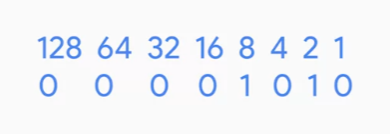
Where the 1’s are represented, you simply add the numbers together and you get the number 10. This binary value means 10.
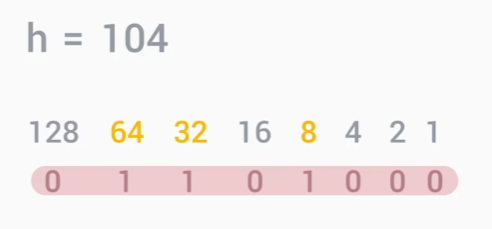
64 plus 32 plus 8 equals 104. The letter h in binary is 01101000.
First Quiz

Comment: I know why I only got 0.75 on, there was another answer that was a valid byte, perhaps I should have selected both of them.
4. Computer Architecture
When we interact with our computers we use our mouse, keyboard or even a touch screen. We use the concept of abstraction to take a relatively complex system and simplify it for our use.
Abstraction hides complexity by providing a common interface, the steering wheel, pedals, gear stick, and gauges in a car for example.
This concept of abstraction will be used throughout this entire course. It’s a fundamental concept in the computing world.
One other simple example of abstraction in an IT role that you might see a lot is an error message. We don’t have to dig through someone else’s code and find a bug. This has been abstracted out for us already in the form of an error message.
Overview
A computer can be cut into four main layers, hardware, operating system, software, and users.
The hardware layer is made up of the physical components of a computer. These are objects you can physically hold in your hand. Laptops, phones, monitors, keyboards.
The operating system allows hardware to communicate with the system. Hardware is created by many different manufacturers. The operating system allows them to be used with our system, regardless of where it came from.
The software layer is how we as humans interact with our computers.
The user layer is one of the most important layers we’ll learn about. When you step into the field of IT, you may have your hands full with the technical aspects, but the most important part of IT is the human element.
Second Quiz

5. Grade Assessments
Final quiz for this week goes for 30 minutes and you need a passing grade of 100% to move onto the next part.

Tech Support Fundamentals – Week 2
1. The Modern Computer
Desktops are just computers that can fit on or under our desks. So here we have a monitor, a keyboard, a mouse, and a desktop.
Sometimes you might even add a webcam, speakers, or a printer set up. We’ll call these physical components, hardware. Let’s take a look at the back of the computer.
Ports are connection points that we can connect devices to that extend the functionality of our computer.
In our computer, we have something called the External Data Bus or EDB. The EDB comes in different sizes, 8 bit, 16 bit, 32, even 64.
Inside the CPU there are components known as Registers. They let us store the data that our CPU works with. If for example, our CPU wanted to add two numbers, one number would be stored in a register a. Another number would be stored in register b. The result of those two numbers would be stored in register c.
Remember that our programs are copied into RAM for the CPU to read.
We don’t actually send data from RAM over the EDB. RAM can hold millions, even billions, of rows of data.
Since we can only send one line of data through the EDB at the time, we need the help of another component, the Memory Controller Chip or MCC.
The MCC is a bridge between the CPU and the RAM.
“You can think of it, a nerve in your brain connecting to your memories. The CPU talks to the MCC, and says, hey, I need the instructions for step number three of this recipe. The MCC finds the instructions for step number three in RAM, grabs the data, and sends it through the EDB.”
There’s another bus. There’s nothing like a bus involved in the process called the Address bus. It connects the CPU to the MCC, and sends over the location of the data, but not the data itself. Then the MCC takes the address and looks for the data. And then data is then sent over the EDB.
Believe it or not, RAM isn’t the fastest way we can get more data to our CPU for processing. The CPU also uses something known as Cache.
There are three different cache levels in a CPU, L1, L2, and L3. L1 is the smallest and fastest cache.
Our CPU has an internal clock that keeps its operations in sync. It connects to a special wire called Clock wire. When you send or receive data, it sends a voltage to that clock wire to let the CPU know it can start doing calculations.
“Think of our clock wires as the ticking of a clock. For every tick, the CPU does one cycle of operations. When you send a voltage to the clock wire, it’s referred to as a clock cycle. If you have lots of data you need to process in a command. You need to run lots of clock cycles.”
3.40 gigahertz is 3.4 billion cycles per second.
There’s a way you can exceed the number of clock cycles on your CPU on almost any device. It’s referred to as Overclocking and it increases the rate of your CPU clock cycles in order to perform more tasks.
For more information about CPU caches, click here.
For more information about how to overclock your CPU, check out the link here.
First quiz

The CPU stores its computations in the Registers
The external bus and address buss are used to transport binary data and memory addresses.
2. Components
CPU
Every single program on your computer, while extremely complex, is broken down into very small and simple instructions found in our instruction set. Instruction sets are hard-coded into our CPU. So different CPU manufacturers may use different instructions sets.
You’ve probably heard of a few popular CPU manufacturers or chipsets like Intel, AMD and Qualcomm.
These CPU manufacturers use different part names to differentiate their processors. Like Intel Core i7, AMD Athlon, Snapdragon 810, Apple A8, and more.
When you select your CPU, you need to make sure it’s compatible with your motherboard.
The socket size may vary. So always make sure you CPU and socket are compatible before hand.
There are currently two major types of CPU sockets, Land Grid Array also known as LGA, and Pin Grid Array, also known as PGA.
To learn more about the differences between 32-bit and 64-bit CPU architecture, click here and here.
RAM
This is the computers short term memory. All RAM is volatile, meaning it disappears when the power is off.
There are lots of types of RAM. And the one is commonly found in computers, is DRAM or dynamic random access memory.
Where a one or zero is sent to DRAM, it stores each bit in a microscopic capacitor. This is either the charge or discharge represented by one or zero. These semiconductors are put into chips that are on the RAM and store our data.
The more modern DIMM sticks, which usually stands for Dual Inline Memory Module, have different sizes of pins on them.
After DRAM was created, RAM manufacturers build something called SDRAM which stands for Synchronous DRAM.
In today’s system, we use another type of RAM, called double data rate SDRAM, or DDR SDRAM for short. Most people refer to this RAM as DDR, even shorter.
There were lots of iterations of DDR, from DDR1, DDR2, DDR3 and now, DDR4. DDR is faster, takes up less power, and has a larger capacity than earlier SDRAM versions.
The latest version, DDR4, is the fastest type of short term memory currently available for your computer.

Motherboards
It lets us expand our computer’s functionality by adding expansion cards. It routes power from the power supply and it allows the different parts of the computer to communicate with each other.
The chipset on motherboards is made up of two chips. One is called the Northbridge that interconnects stuff like RAM and video cards. The other chip is the Southbridge which maintains our IO or input/output controllers, like hard drives and USB devices that input and output data.
In some modern CPUs, the Northbridge has been directly integrated into the CPU so there isn’t a separate Northbridge chipset.
A chipset is a key component of our motherboard that allows us to manage data between our CPU, RAM, and peripherals.
Expansion slots also give us the ability to increase the functionality of our computer.
The standard for an expansion slot today is the PCI Express or Peripheral Component Interconnect Express.
The most common form factor for motherboards is ATX which stands for Advanced Technology eXtended.
A smaller version of the ATX is called ITX or Information Technology eXtended form factor.
Storage
Hard disk drives, or HDDs, use a spinning platter and a mechanical arm to read and write information. This is commonly referred to as RPM, or revolution per minute. A hard drive with a higher RPM is faster. HDDs are prone to a lot more damage because there are a lot of moving parts.
SSDs have no moving parts. The information is stored on microchips and data travels a lot faster than HDDs.
“HDDs are more affordable, but they’re more prone to damage. SSDs are less risky when it comes to losing data, but they’re also more expensive.”
There are a few interfaces that hard drives use to connect to our system. ATA interfaces are the most common ones.
The most popular ATA drive is a serial ATA, or SATA, which uses one cable for data transfers. SATA drives are hot swappable.
SATA drives move data faster and use a more efficient cable. SATA has been the de facto interface for HDDs today.
The interface couldn’t keep up with speed of the newest SSDs. So another interface standard was created called NVM Express, or NVMe. Instead of using a cable to connect your drive to your machine, the drive was added as an expansion slot.
Power Supplies
There are two types of electricity, DC, or direct current, which flows in one direction and AC, or alternating current, which changes directions constantly
Computers use DC and the wall outputs AC. A Power Supply will convert the AC from the wall into DC and distribute power though connected wires.
Always check the voltage of your device before plugging something into the wall.
Amp are the current of electricity. We can think of amps as pulling electricity, as opposed to voltage, which pushes electricity.
Wattage is the amount of volts and amps that a device needs.
Since power supplies can fail for lots of reasons like burnouts, power surges, or even lightning strikes, knowing how to diagnose power issues and replace a failed power supply is a skill every IT support specialist should have in their toolbox.
Mobile Devices
Mobile devices are like mini computers. Some mobile devices are general purpose computing devices like tablets or smartphones, other mobile devices are optimized to perform a specific set of tasks like fitness monitors, e-readers, and smartwatches.
Very small mobile devices use a system on a chip or SoC. A system on a chip packs the CPU, RAM, and sometimes even the storage onto a single chip. Not only our SoC is small, they use less battery power than if those components were separated.
Mobile devices may use standard or proprietary ports and connectors.
Batteries and Charging Systems
Rechargeable batteries have a limited lifespan which is measured in charge cycles. Charge cycle is one full charge and discharge of the battery.
When a battery is reaching the end of its lifespan, it may take longer to charge and might not hold as much charge as when it was new.
Mismatching chargers to devices can damage the battery, the device, and the charger.
Rechargeable batteries can be damaged by very cold or very hot environments. Don’t charge or discharge rechargeable batteries unless they’re within their safe operating temperature range.
Batteries can swell, rupture, and sometimes even catch fire.
You can learn about Inductive Charging.
Read more about batteries and charge cycles for Windows or Macs. You can also check out: Safe handling of lithium-ion batteries.
Finally, learn how to maximize your batteries for iOS or Android.
Peripherals
A peripheral is basically anything that you connect to your computer externally that adds functionality.
You most commonly encounter USB 2.0, USB 3.0, and 3.1 in today’s system.
USB 2.0 transfers speeds of 480 megabytes per second, USB 3.0 transfers speeds of five gigabytes per second, USB 3.1 transfers speeds of 10 gigabytes per second.
MB is megabyte or unit of data storage, while capital M lower case b forward slash s is a megabit per second, which is a unit of data transfer rate.
There are many types of USB connectors, which you can read about in more detail here.
Quiz

3. Starting it up
BIOS
If you just clicked on the key from your keyboard, you’d only be sending a byte to the CPU. The CPU doesn’t know what this is, because it doesn’t have instructions on how to deal with it. Turns out our devices also use programs to tell the CPU how to run them. These programs are called services or drivers.
Our CPU doesn’t know that there is a device that it can talk to, so it has to connect to something called the BIOS, or basic input output services. The BIOS is software that helps initialize the hardware in our computer and gets our operating system up and running.
Our motherboard stores the BIOS in a special type of memory called, the read-only memory chip, or ROM chip. Unlike RAM, ROM is non-volatile, meaning it won’t erase the data if the computer is turned off.
In today’s system, there is another player for BIOS called UEFI, which stands for Unified Extensible Firmware Interface. UEFI performs the same function of starting your computer as a traditional BIOS.
Most hardware out there today comes with UEFI built in. Eventually, UEFI will become the predominant BIOS.
When you turn on a computer, you might notice a beeping from time to time. How computers run a test to make sure all the hardware is working correctly. This is called a Power On Self Test or POST.
The POST figures out what hardware is on the computer.
Also, you should know that not all machines have built-in speakers, so don’t worry if your computer boots without a beep.
There is a special chip on our motherboard called the CMOS battery.
An an IT support role, you might interact with the BIOS more often than you think. BIOS settings control which devices to boot to and in an IT role, you might need to change the settings more often than not.
A frequently performed IT task is the reimaging of a computer.
Putting it all together
This is a 21min video that compiles a PC. I’ll just add the steps as a list instead of writing notes.
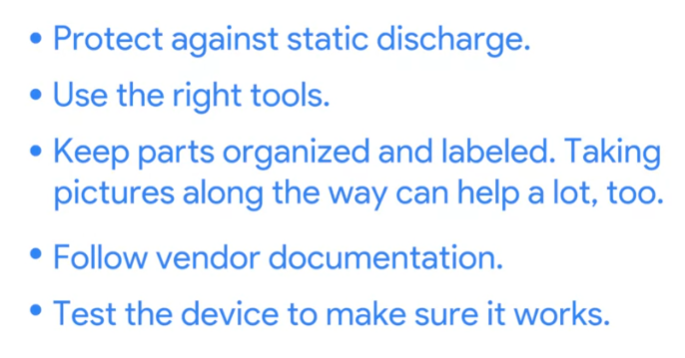
- Before you work on the physical components of your machine, you should ground yourself to prevent electrostatic discharge. They sell them at Jaycar.
- Keep components inside static free bags until you install them.
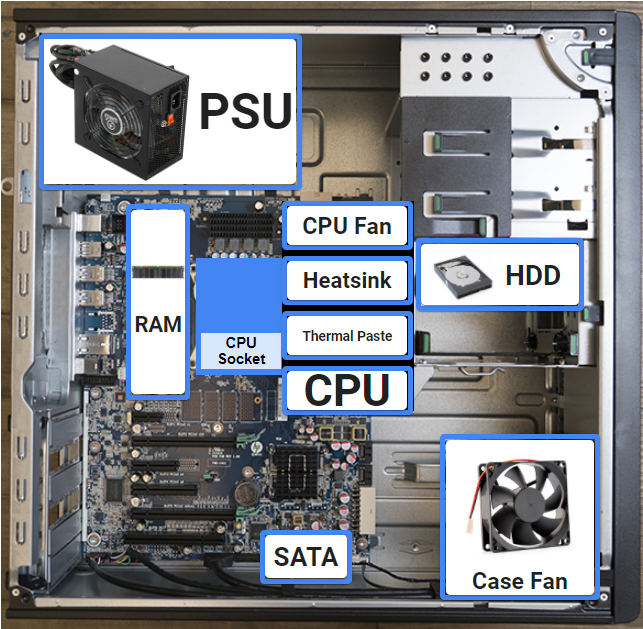
- Make sure Motherboard fits Case.
- Standoffs are used to raise the motherboard from the case.
- Install CPU, check alignment.
- Add thermal paste on top of CPU, spread evenly.
- Add heatsink on top of CPU.
- Install RAM, check DIMM slot gap for alignment.
- Install the SSD or HDD
- Install case fans.
- Install PSU and connect power cables.
- Connect big one to Motherboard
- CPU will usually use those old molex connectors
- Most new devices will use the SATA connector
- Install graphics card to PCI-Express slot
- Close the case
- Add peripherals into back ports.
- Check BIOS settings to boot from USB
- Install OS from USB
Mobile Device Repair
Most devices you can’t or aren’t allowed to repair yourself.
As an IT Specialist you might be trained in repairing devices your company uses.
The devices’ warranty or the service agreement that your organization has with the devices manufacturer will determine how and when it’ll be repaired or replaced.
Always run a factory reset on the device before sending it off to be repaired.
Quiz

All answers were correct, but apparently I could have chosen more items.
4. Hardware Assessment
Final quiz for this week goes for 30 minutes and you need a passing grade of 100% to move onto the next part.
Build a PC.

— Comment: Finishing up for the day. Currently at 34% of module 1.
Start Date: 08/04/2022
Tech Support Fundamentals – Week 3
This module will go over operating systems.
Remote Connections
Ways to connect to another machine securely is by using:
- SSH (OpenSSH is popular in Linux)
- VPN (Like Proton)
Remote connections on Windows machines:
- PuTTY – Good for SSH connections as a GUI
- RDP
You can use putty.exe inside PowerShell
‘ PS C:\users\name\Desktop>putty.exe -ssh user@127.0.0.1 22 ‘
Remote Desktop Protocol (RDP) can use utilized with programs like:
- Remote Desktop Connection (Windows)
- Microsoft Remote Desktop (Mac)
- Remmina (Linux)
You must get the client to enable RDP on a windows machine to be able to connect to it.
‘ Control Panel > System and Security > System ‘
Alternatively you can use tools like:
- TeamViewer
- AnyDesk
RDP brings some security issues such as Reverse RDP Attacks. Here is an example. https://research.checkpoint.com/2019/reverse-rdp-attack-code-execution-on-rdp-clients/
Components
History lesson: PC means Personal Computer, but today when people refer to a computer being a PC they really mean “a windows machine”.
- Windows == Microsoft
- MacOS == Apple
- Linux == Not An Operating System, but a Kernel
The kernel is the essential center of a computer operating system (OS). It is the core that provides basic services for all other parts of the OS. It is the main layer between the OS and hardware, and it helps with process and memory management, file systems, device control and networking.
Phones also use an OS:
- AndroidOS and ChromeOS are built off Linux
- iOS is exclusive to Apple Phones (iPhone)
Files & File Systems
- Windows uses NTFS (NT File System)
- ReFS (Resilient File System) is being developed by Microsoft.
- Linux uses ext4 which is backwards compatible to previous versions
- MacOS uses APFS (Apple File System)
Not mentioned: FAT32 is a common file storage used for USB sticks.
Process Management
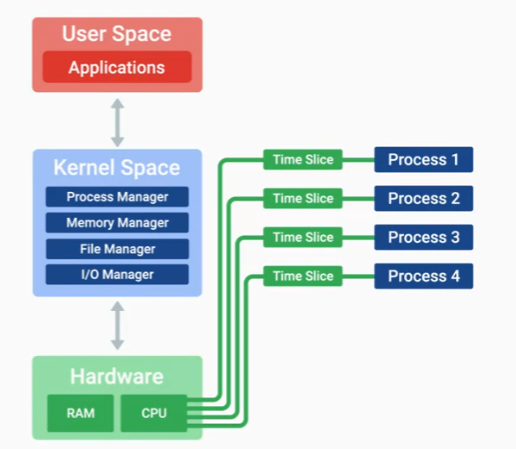
A CPU doesn’t run a process at once, it uses time slices which gives the illusion of running simultaneously.
An issue that can arise is there are too many processes and the CPUs resources are being maxed out.
Memory Management
We can use Virtual Memory to give us more memory than we have on hardware. This is useful for larger applications where loading the entire program into RAM isn’t a good idea.
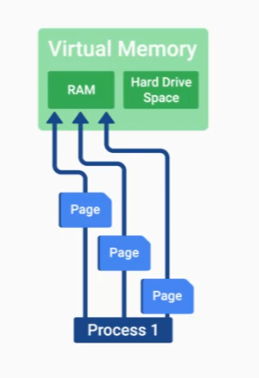
When we store this space within a partition on our Hard Drive, we generally call this space “Swap Space”. The Kernel takes care of this.
I/O Management
Another important task the Kernel manages is the I/O.
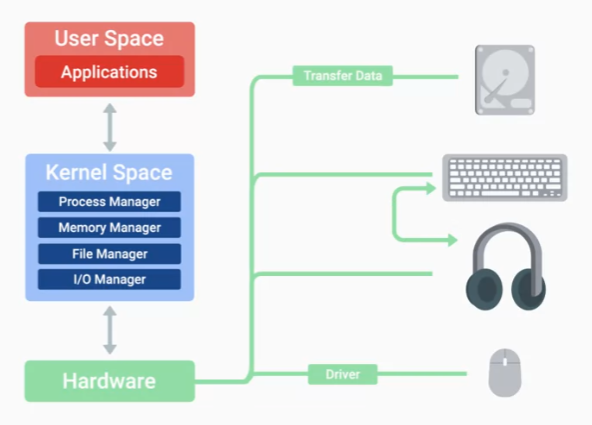
Devices don’t always just need to talk to the Kernel, they also need to talk to each other.
It’s slow! is one of the most common problems you’ll solve in an I.T. support role. Knowing the potential sources of that slowness is a big help when you’re trying to narrow down the cause of the latency.
OS User Space
This is how humans interact with the OS. Two ways people can interact with an OS is:
- GUI (Graphical User Interface)
- Shell (Text based in terminal or command line)
The most common shell for Linux is BASH (Bourne Again Shell). You must know how to use the shell in an IT Support role.
Logs
Logs are files that record system events on our computer. Just like a systems diary our computer will record events like when it was turned on, when a driver was loaded and even when something isn’t working in the form of error messages.
You can see logs in Windows with Event Viewer.
Boot Process
“to pull oneself up by one’s bootstraps”
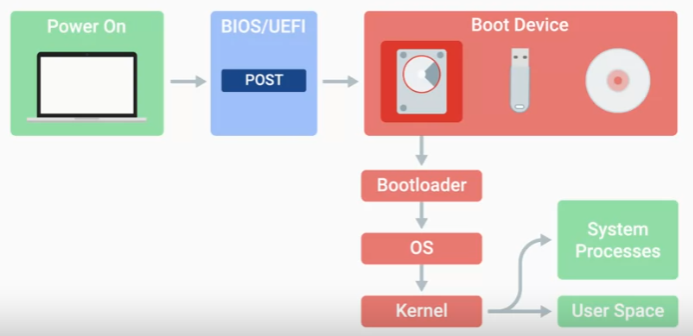
- The BIOS/UEFI is a low-level software that initializes our computer’s hardware to make sure everything is good to go.
- BIOS/UEFI runs a process called the Power On Self Test or POST. The POST performs a series of diagnostic tests to make sure that the computer is in proper working order.
- Depending on the BIOS/UEFI configuration, a boot device will be selected. Devices that are attached to our system, like hard drives, USB drives, CD drives, et cetera are configured in a certain boot order.
- Then the Bootloader, then the OS, then the Kernel.
The Kernel then loads the User Space, Kernel Space and creates connections to our Hardware.
Mobile OS
General-purpose mobile devices generally use a mobile operating system that’s derived from other operating systems. For example, Android is derived from Linux and iOS shares a lot of core components with Mac OS.
Because mobile devices use batteries, a mobile OS will only use resources needed to maximise battery lifetime.
More specialized mobile devices like fitness trackers, e-readers, and GPS devices often used custom OS’s that are optimized for what the device is designed to do.
Quiz 1
Answer incorrect: The user space is the last thing the OS loads. I chose drivers for some reason… I even knew the answer but second guessed it.
Installing an OS
How to choose an OS?
If you’re looking for an operating system for personal use, then you need to ask yourself, what software will need to be run on this device.
You should keep in mind that some manufacturers allow their operating system to be only installed on their hardware.
If you have a 64-bit CPU, you should also install the 64-bit version of the operating system you choose.
Virtual Machines
A virtual machine is just a copy of a real machine.
Basically you can run multiple OS at once. You can have Windows 11 with VirtualBox installed and run a version of Linux inside a virtual machine using the same hardware.
Windows
- Windows come on a USB drive
- Enter BIOS and change the boot order to USB first.
- Plug in the USB and reboot the computer
- Go through the wizard prompts (install now)
- It will want to update
- Enter the product key (you can skip)
- Create an account and finish setup
Linux (Ubuntu)
- Download the ISO and flash it to a USB using etcher
- Enter BIOS and change the boot order to USB first.
- Plug in the USB and reboot the computer
- When in GRUB, select “fresh install”
- Go through the wizard prompts (install now)
- Create an account and enter hostname
- It will want to update
Chrome OS
This is an operating system based on Linux. IT has one purpose of being secure way for users to interact with the web. Basically an OS built around a web browser that has abilities to run android applications.
Mac OS X
All Mac computers come with Mac OS pre-installed.
Quiz 2
100%
Exam – Quiklabs Platform
Important details:
- You will have 60 minutes to complete each lab.
- You’ll experience a delay as the labs load (particularly for Windows labs), as well as for the working instances of Linux and Windows VMs. So, please wait a couple of minutes.
- After clicking “start lab”, the lab needs to run for a minimum of 5 minutes in order for your score to be shared back to Coursera. If you click “end lab” before 5 minutes have passed, your score may not be properly updated on Coursera.
- Make sure to access labs directly through Coursera and not in the Qwiklabs catalog. If you access labs through the Qwiklabs catalog, you will not receive a grade. (As you know, a passing grade is required to complete the course.)
- You’ll connect to a new VM for each lab with temporary credentials created for you; these will last only for the duration of the lab.
- The grade is calculated when the lab is complete, so be sure to hit “End Lab” when you’re done. Note: after you end the lab, you won’t be able to access your previous work.
- If you receive the error “Sorry, your quota has been exceeded for the lab“, please reach out to the Qwiklabs support team directly via chat support on qwiklabs.com.
What you’ll do
There are two learning objectives for this lab:
- Familiarize yourself with the Qwiklabs environment.
- Access a Windows VM instance and create a basic folder using the graphical user interface (GUI).
Week 4 – Networking
Comment: I think this one is going to be boring as hell… The notes will be short.
Networking Basics
- Servers connect to the internet, the information held on the internet is called the world wide web.
- Client don’t connect directly to the internet, they connect to an ISP which connects to other networks and ISPs, which is called the internet.
- A computer Identifier is the IP address.
- A computer also uses a MAC Address as a unique identifier.
- IP addresses change, MAC addresses don’t.
- Data sent through a network are called packets.
Networking Hardware
- Routers
- Switches
- Hubs
- RJ45 cable (ethernet cable)
- RJ11 cable (modem cable)
Protocols
Network protocols are a set of rules on how we send data through a network. There are rules that make sure our packets are routed efficiently, aren’t corrupted, are secure, go to the right machine and are named appropriately.
The Transmission Control Protocol and the Internet Protocol, or TCP/IP for short, which have become the predominant protocols of the Internet. The Internet Protocol or IP, is responsible for delivering our packets to the right computers.
The Transmission Control Protocol or TCP, is a protocol that handles reliable delivery of information from one network to another.
“This protocol was an important part of the creation of the internet since it let us share information with other computers.”
The Web
- Servers have an IP, Websites render in HTML
- ICANN assign domain names
- Change DNS records to point domain to server
If you can access a website by IP but not domain, there is a DNS issue.
Not mentioned: In windows you can use ipconfig/flushdns
Internet History
It was thanks to computer scientists Vinton Cerf and Bob Kahn, who created the method we call the Transmission Control Protocol and the Internet Protocol in the 1970s, or TCP/IP. First, only a handful of computers in universities, governments, and businesses adopt TCP/IP, then hundreds.
Then, in the 1990s, a computer scientist by the name of Tim Berners-Lee invented the World Wide Web.
It’s been 30 years since the creation of the World Wide Web. We’ve gone from sending simple email messages and viewing basic webpages to having video chats and instant news updates. Order food, buy books, and even cars in a matter of seconds.
Limitations
Even though it might seem like a lot of possible IPv4 addresses, there are less than 4.3 billion IPv4 addresses. There are way more than 4.3 billion websites out on the web today. Some IPv4 addresses are even reserved for special purposes. So, the number of usable IP addresses is even less.
Quiz
100%
Impact of the Internet
It’s made it easy to connect.
- Streaming killed VHS/DVD
- News websites killed Newspapers
- Colleges utilize online learning
- Social media movements (Arab Spring Protests)
IoT
The world is moving towards connecting manual devices to the internet and making them smarter.
Privacy & Security
In most cases, companies are trying to build great products that make our lives easier. They may offer their products for free because you provide them with free data.
In Europe, data regulation and privacy are strictly protected to help EU citizens gain more control over their personal information.
COPPA, or the Children’s Online Privacy Protection Act, also regulates the information we show to children under the age of 13.
Another concern that’s grown with the rise of the Internet is the issue of copyright.
More and more companies are being targeted in cyber security attacks. For example, the WannaCry Attack that started in Europe, infected hundreds of thousands of computers across the world.
Computer security is no longer the job of specialized security engineers, it’s everyone’s responsibility, and as an IT support specialist, you’ll need to have a fundamental understanding of computer security.
Exam
90%
Answer I got wrong was “permanent unique identifier of your networking device” and I even knew the answer was MAC Address, but I blindly chose IP for some reason.
Week 5 – Software
Comment: This is also going to be boring…
In a compiled language, the target machine directly translates the program. In an interpreted language, the source code is not directly translated by the target machine. Instead, a different program, aka the interpreter, reads and executes the code.
- Coding is basically translating one language to another.
- Scripting is coding in a scripting language.
- Programming is coding in a programming language.
Application Software is any software created to fulfill a specific need, like a text editor, web browser, or graphics editor. System software is software used to keep our core system running, like operating system tools and utilities.
BIOS is a firmware…
Thanks to the efforts of computer scientists and the principle of abstraction, we can now use programming languages to write instructions that can be run on any hardware.
As an IT support specialist, scripting can help you by harnessing the power of a computer to perform tasks on your behalf, allowing you to solve a problem once and then move on to the next thing.
Quiz
100%.
Managing Software
- A good guideline is to update your software constantly.
- Install all the software required for the job.
- Remove software that isn’t required for the job.
- A common industry practice is to not allow users to install software without administrator approval.
Quiz
LOL, 1 question… 100%
Exam – Lab Work
What you’ll do – Windows
There are three learning objectives for this lab:
- Install– You’ll install the Mozilla Firefox web browser. There’s currently no version of Firefox on the machine you’ll be using, so it will be a fresh installation.
- Update– The machine you’ll be using comes preinstalled with an old version of the VLC Media Player. You’ll update VLC to the newest version.
- Uninstall– You’ll uninstall the GIMP photo-editing tool from the machine, removing it entirely.
What you’ll do – Linux
There are three learning objectives for this lab:
- Update– The machine you’ll be using comes preinstalled with an old version of the VLC Media Player. You’ll update VLC to the newest version.
- Install– You’ll install the Mozilla Firefox web browser. There’s currently no version of Firefox on the machine you’ll be using, so it will be a fresh installation.
- Uninstall – You’ll uninstall the GIMP photo-editing tool from the machine, removing it entirely.
Week 6 – Troubleshooting
- Ask questions
- Isolate the problem
Pitfalls
- Don’t use muscle memory to solve problems
- Not finding the root cause
Quiz
First fail – Scenario: You’re working in an IT Support position and a user comes to you and says they can’t access their online bank account. Choose the best response.
Comment: The answer was “Can you explain to me in detail what you mean by not being able to access your online bank account? What specific part doesn’t work?” which I think is a stupid fking question to ask. The answer is obviously going to be “The web browser, or internet” I still think “let’s trying logging in on another computer” will give the same result “network issue”…
Customer Service
Comment: I’m going to be terrible here…
- Empathy
- Conscious of tone
- Acknowledge the user
- Trust from from the user
If the customer has a bad experience with customer support, you fail, even if you still solved the problem.
Quiz
Four customer support scenarios. 100%
Quiz
90%
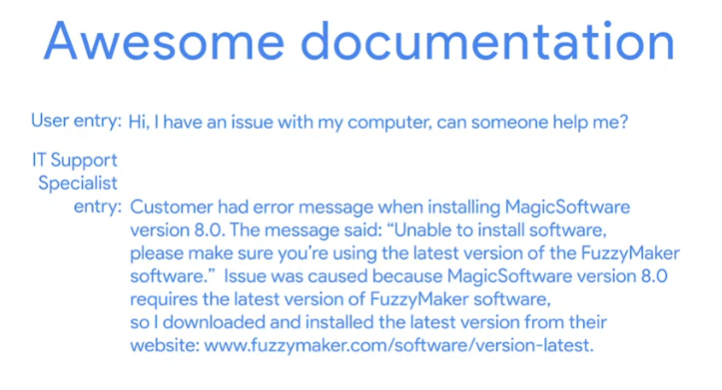
Documentation
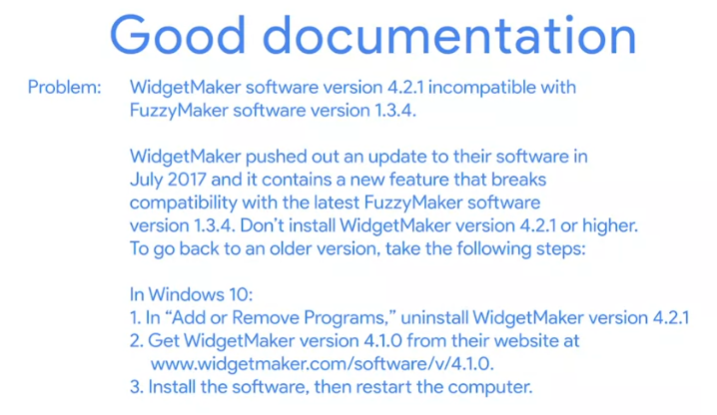
Ticketing is a common way to document issues.
Common tools are:
- Bugzilla
- JIRA
- Redmine
Final Thoughts for Module 1
None…